Watch the video
Player by YouTube. Open original video ↗
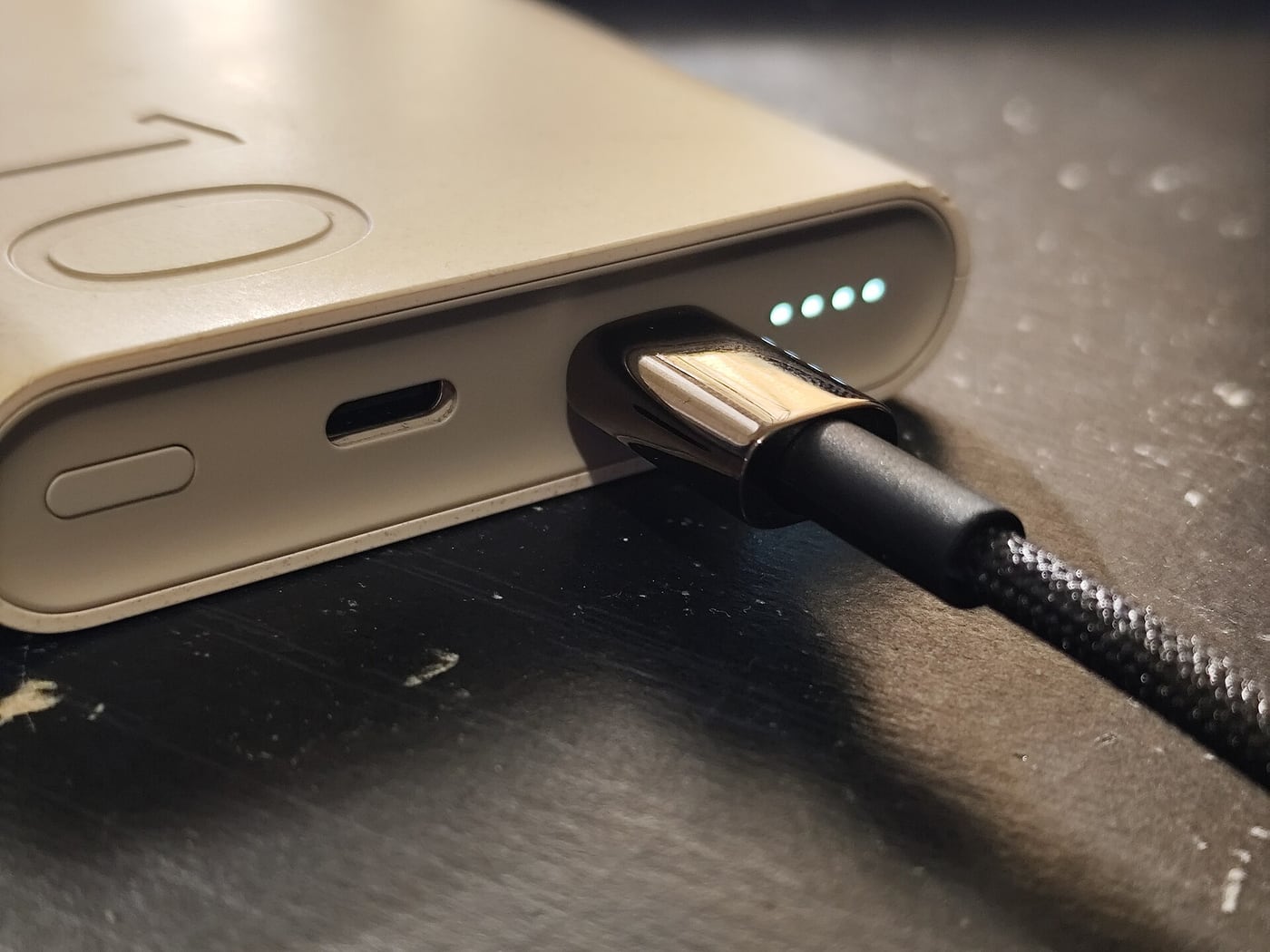
You connect a laptop to a screen with a USB-C cable. The laptop charges, but the monitor stays blank. Trying a second oval-shaped port produces the same result. The connection may be working exactly as specified, while the specification is different from what you expected.
USB-C identifies the connector type. It does not, by itself, promise a particular display connection, data rate or charging capability. Intel's Thunderbolt guidance makes that distinction useful for everyday buyers: standards and supported features sit behind the connector's familiar shape.
Describe the task before the connector
Start with what you want the connection to do. Charging a phone, copying a large video file and running two external displays are different jobs. A product described only as a USB-C cable may not establish that it supports the one you need.
For a fictional desk setup, the goal might be one external screen, a keyboard, wired networking and charging through one dock. Write that list down, including the screen's intended resolution and refresh rate. It gives a retailer or the laptop maker a concrete compatibility question.
Avoid asking only whether the dock works with a brand. A brand can sell machines with different ports and display limits. The full model identifier is more useful than the logo on the lid, particularly when several generations share a similar name.
Read the laptop's port description
Find the manufacturer's specification for the exact laptop. Look for the supported data standard, any stated video capability and the charging arrangements. A symbol beside the port can help, but the written specification is the stronger reference when the symbol is unclear.
Thunderbolt is a connectivity standard that uses the USB-C connector. Intel describes capabilities associated with certified Thunderbolt products. Those capabilities should not be assumed for every product that has the same connector shape or an unrelated lightning-like logo.
If the laptop has several USB-C ports, check whether they have the same functions. Also check the manufacturer's limit on external displays. A dock with multiple video sockets cannot independently grant a host computer a display capability that the computer does not support.
A charging claim does not establish a data claim
A cable can be marketed prominently by its supported charging power while offering a different level of data capability. Read both specifications. The fact that it successfully powers a device is not proof that it can carry the display signal or transfer speed you want.
Similarly, a fast data description does not settle every charging question. The charger, cable and device must support the relevant arrangement. A high maximum printed on one component is not a promise that an attached device will take that amount of power.

For a practical purchase note, keep separate lines for charging, data and video. This makes omissions visible. If the listing supplies a power figure and a length but says nothing about video, ask rather than filling the gap with an assumption.
If accessories are shared at work, label the known-compatible cable and keep its specification with the equipment record. A cable borrowed from a charging drawer may be fine for charging while failing the display task. A small record of the working combination can prevent the same support problem being repeated after every desk move.
The dock is another specification to read
A dock can introduce its own limits, software requirements and power arrangements. Check the host connection, the supported display combinations and whether a power supply is included. Count the usable ports in the configuration you actually intend to run.
Be careful with an advertised maximum that applies only under a particular set of conditions. Two screens connected simultaneously can be a different case from a single-screen demonstration. Read the manufacturer's compatibility table and notes together.
If extra display software is required, ask whether your workplace or course permits it. A managed computer may not allow arbitrary installation. A dock that depends on unavailable software is a poor match even if a similar-looking personal laptop worked in a video.
Diagnose a problem one change at a time
Check that the screen is on the intended input, then compare each component with its documented role. Where possible, test with a known-compatible cable and the manufacturer's recommended connection. Change one component at a time so that a successful result tells you something.
Do not repeatedly buy adapters before identifying what is missing. Keep a short record of the laptop model, port used, cable specification, dock model and screen setting. That information gives support staff a much better starting point than saying USB-C does not work.
If the device, cable or connector is damaged, overheating or behaving unusually, stop using that connection and follow the manufacturer's safety guidance. A compatibility checklist is not a reason to keep testing a visibly damaged accessory.
Buy the documented combination
Before paying, look for an explicit statement that the proposed combination supports your intended task. Save the product page or written advice with the model code and date. That record can help if the delivered product differs from the description.
Older explanatory videos remain useful for understanding the difference between a connector and a standard. They should not be read as a complete list of current USB or Thunderbolt capabilities. Use current specifications to select an actual product.
The useful question is no longer whether the plug fits. It is whether the laptop, cable, dock and display support the same intended connection. Once those roles are written separately, a confusing accessory shelf becomes a set of specific compatibility checks.
Related video: StarTech.com. Historical manufacturer explainer of USB-C and Thunderbolt 3; use current product specifications.
Read more from AusLume Media: account recovery before changing phones.

About the author
RullikClear, sourced explainers on Australia and the world
Rullik is the pen name of the founder of Australia Illuminate (Auslume). Rullik writes plain-language explainers on life in Australia, from immigration, study and work to money, sport and screen culture, always linking to the official sources behind each story. Every story is reviewed before publication.
More from Rullik ↗Image credits
- Laptop, notebook and pen on a desk beside a chair.: Illustrative photograph, not a reported event or endorsement. Photo: nicoll camacho / Unsplash. https://unsplash.com/photos/laptop-notebook-and-pen-on-a-desk--Z8cI1gs4zk (Unsplash License: https://unsplash.com/license).
Sources
- https://www.intel.com/content/www/us/en/architecture-and-technology/thunderbolt/thunderbolt-4-vs-usb-c.html
- https://www.usb.org/products
- https://support.apple.com/en-au/102588
- https://www.dell.com/support/contents/en-us/videos/videoplayer/dell-guide-to-usb-c-and-thunderbolt-how-to-fix-issues/6341930196112